Garmin Connect IQ · Data field
Gym Sets Counter
Know which set you’re on. See your current set number right on your Garmin watch during a strength workout.
A data field for your existing activity screens—not a separate workout app.
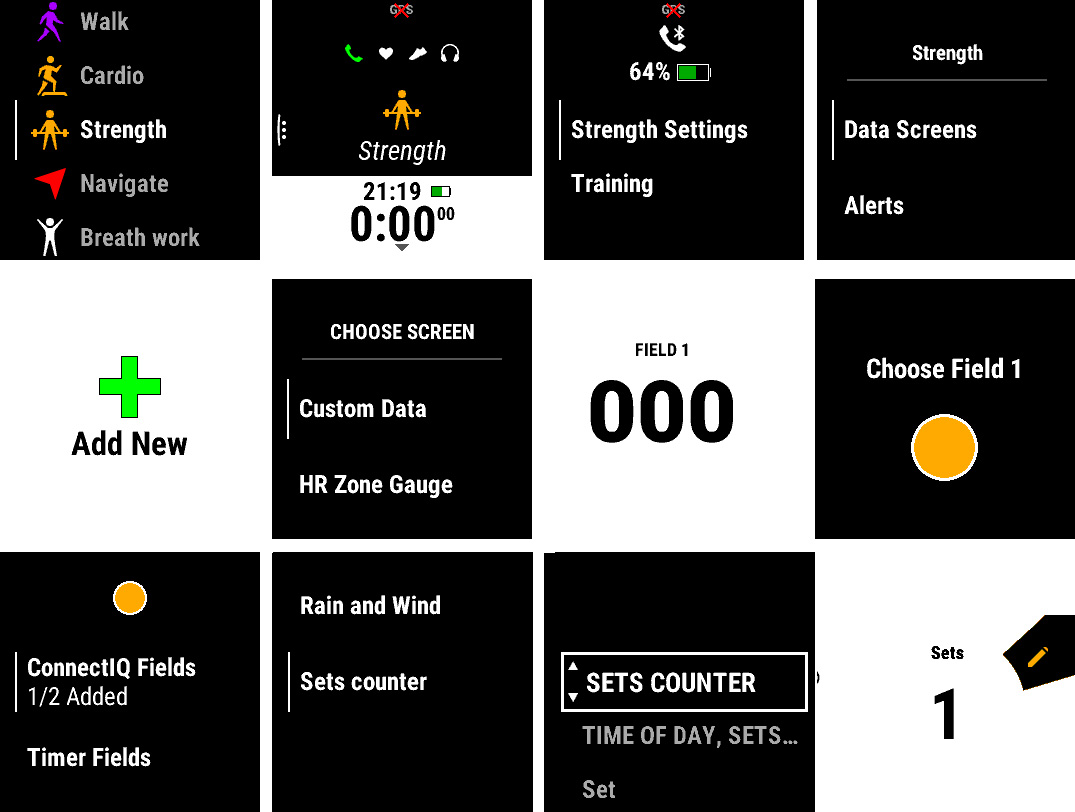 Follow the screenshots alongside the steps. Tap or click the image to see it at full size. Menu names may vary by watch.
Add the counter to your watch
Install the data field, then add it to a data screen in your Strength activity.
Install Sets Counter
Download it from Garmin Connect IQ and sync your watch.
Open Strength settings
On your watch, open the settings for the Strength activity.
Add a data screen
Choose Data Screens, create a new screen, and select Custom Data.
Choose a layout
Select Field 1 for a single-field screen, or choose a layout with more fields.
Select the field to change
Choose Field 1, or the slot where you want the set counter to appear.
Choose Sets Counter
Open Connect IQ Fields and select Sets Counter.
Arrange your screen
Move the new data screen to the place you prefer in the activity’s screen order.
Keep useful workout data together
Want your set count, set time, and total time on one screen? Choose a multi-field layout during setup, then assign the data you want to each slot.
The counter can also be used in activities with a set or lap counter, such as running or cycling.
Download & support

Find the data field and its device information in the Connect IQ listing.